Navigation overrides
Add the Navigation Override (SmartNavigationOverride) component to a GameObject that already has a Selectable to replace individual directions after the owning Navigation Group (SmartNavigationGroup) calculates its normal links.
Each of Up, Down, Left, and Right has one mode.
Auto
Auto preserves the target generated by the navigation group.
None
None forces the direction to have no target.
Explicit
Explicit uses the assigned Selectable only when that target is active, enabled, and interactable at rebuild time. The target may be outside the navigation group.
If the assigned target is missing or invalid, the direction resolves to no target. It does not fall back to the generated Auto target.
Inspector
The custom Inspector shows a mode field for each direction. Explicit Target appears only when that direction uses Explicit mode. Changing a serialized override in the Inspector marks the owning group dirty through normal Unity validation.
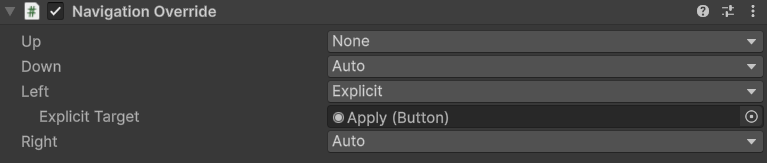
Runtime configuration
using LevelArgento.SmartUINavigation;
using UnityEngine;
using UnityEngine.UI;

public sealed class NavigationOverrideSetup : MonoBehaviour
{
    [SerializeField] private SmartNavigationOverride navigationOverride;
    [SerializeField] private Selectable explicitLeftTarget;

    public void Configure()
    {
        navigationOverride.Up = new SmartNavigationDirectionOverride(
            SmartNavigationOverrideMode.None);

        navigationOverride.Left = new SmartNavigationDirectionOverride(
            SmartNavigationOverrideMode.Explicit,
            explicitLeftTarget);
    }
}
Setting a public direction property marks the owning group dirty. With automatic rebuilding disabled, call RebuildNavigation() on the group after configuring overrides.