Input modes
The Input Mode Detector (SmartInputModeDetector) component reports which device category most recently produced relevant UI activity.
Modes
SmartInputMode contains:
MouseKeyboardGamepad
Read the current value through CurrentMode. Subscribe to ModeChanged when other presentation or focus code needs to respond:
using LevelArgento.SmartUINavigation;
using UnityEngine;

public sealed class InputModeStatus : MonoBehaviour
{
    [SerializeField] private SmartInputModeDetector detector;

    private void OnEnable()
    {
        detector.ModeChanged += OnModeChanged;
        OnModeChanged(detector.CurrentMode);
    }

    private void OnDisable()
    {
        detector.ModeChanged -= OnModeChanged;
    }

    private static void OnModeChanged(SmartInputMode mode)
    {
        Debug.Log($"UI input mode: {mode}");
    }
}
The event is raised only when the mode changes.
Action configuration
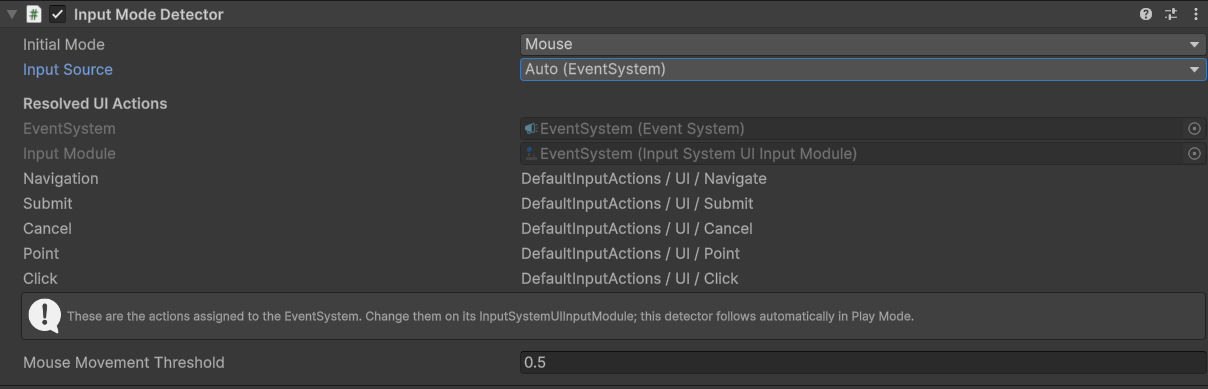
Auto (EventSystem) is the default and recommended Input Source. The detector observes the Navigation, Submit, Cancel, Point, and Click actions assigned to the managed EventSystem's InputSystemUIInputModule. Its Inspector shows the resolved actions as read-only information. Change UI actions on the EventSystem, not on the detector. Auto follows module action changes during Play Mode and does not depend on action or map names. No manual action assignments are needed. If a compatible module or one of its actions is unavailable, previously serialized detector action references can serve as fallbacks.
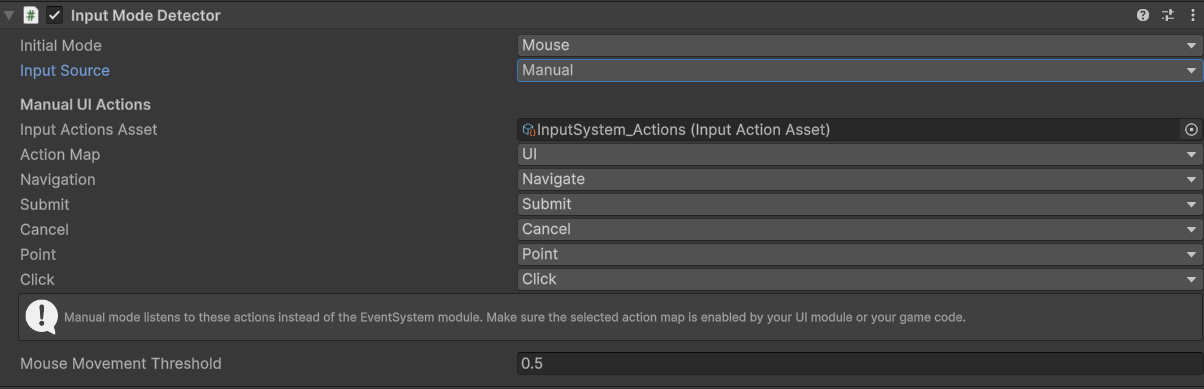
For advanced setups, choose Manual. Select an Input Actions Asset, then an Action Map and its Navigation, Submit, Cancel, Point, and Click actions. An InputActionAsset contains maps; a map contains actions; each action has bindings to device controls. The asset and map selectors organize which actions the detector observes. The actions must already be enabled by the UI module or application code; the detector does not enable or disable them.
Manual changes input-mode detection only. It does not replace the actions or bindings used by InputSystemUIInputModule for actual UI navigation and pointer interaction. If the EventSystem and detector use different actions, check both configurations when troubleshooting.
Keyboard navigation, submit, or cancel activity selects Keyboard mode. Gamepad navigation, submit, or cancel activity selects Gamepad mode. Mouse movement meeting or exceeding the configured pixel threshold, or a mouse click, selects Mouse mode.
For gamepad navigation, the detector reads the observed action's processed Vector2. A stick value removed by that action's deadzone remains zero and does not count as intentional navigation.
Focus policy
When assigned to the Focus Manager (SmartFocusManager) component, Mouse mode prevents automatic recovery from unnecessarily forcing selection back onto a Selectable during pointer interaction. Relevant keyboard or gamepad activity can restore a valid focus target if the current selection is invalid.
This is a focused policy for uGUI selection recovery. It does not define every possible hover, cursor, or mixed-input presentation rule for an application.