Installation
Requirements
Review Requirements & Compatibility before importing. The package requires Unity UI (com.unity.ugui) and the Unity Input System (com.unity.inputsystem).
Compatible with Unity 2022.3 LTS and Unity 6. Validated with Built-in, URP, and HDRP.
Import
Import the asset into the Unity project through the Asset Store package workflow. Keep the Runtime, Editor, Samples, and Documentation folders together so assembly definitions and sample references remain intact.
For the smallest working setup, follow the Quick Start steps after import.
If the required Unity packages are not already installed, add Unity UI and Input System through Window > Package Management > Package Manager.
Package Structure
After import, Smart UI Focus & Navigation is organized into the following folders:
- Runtime — Components and APIs used by your game at runtime, including focus management, input-mode detection, smart navigation, layout constraints, and navigation overrides.
- Editor — Unity Editor-only tooling and custom inspectors. These scripts improve the Inspector experience and are not included in player builds.
- Samples — Included example scenes demonstrating focus management, dynamic navigation, modal restoration, input modes, and the Navigation Showcase.
- Documentation — Offline product documentation and package information.
- Branding — LevelArgento/product branding assets used by the included documentation and package presentation.
Keep these folders together when importing or moving the package so assembly definitions and sample references remain intact.
EventSystem setup
Each UI scene needs one active EventSystem configured for the New Input System:
- Create or select the scene's
EventSystem. - Use
InputSystemUIInputModuleas its UI input module. - Assign enabled UI actions for navigation, submit, cancel, pointer position, and click as required by the project.
- Avoid running a legacy
StandaloneInputModuleon the sameEventSystem.
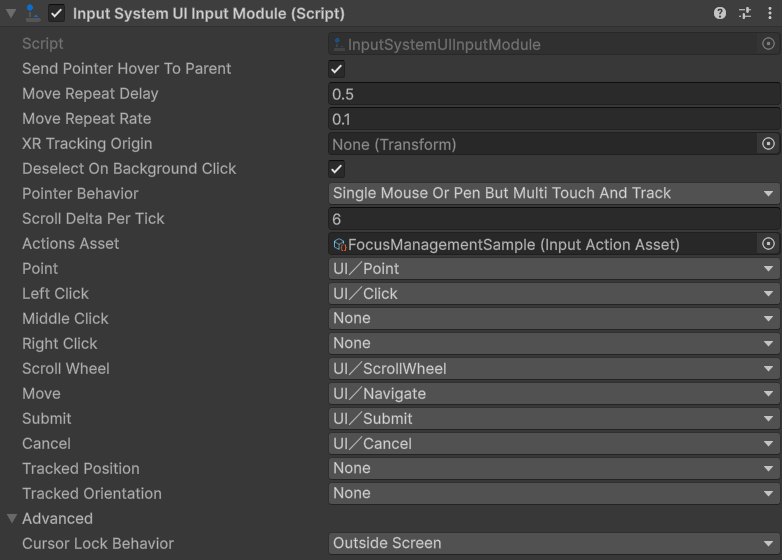
InputSystemUIInputModule with Point, Click, Navigate, Submit, Cancel, and Scroll Wheel actions assigned.Add the Focus Manager (SmartFocusManager) component to a suitable scene object. Assign its Event System field explicitly, or leave it empty to use EventSystem.current. Explicit assignment is preferable in scenes with unusual initialization order.
To use input-mode-aware focus policy, add the Input Mode Detector (SmartInputModeDetector) component and assign it to the Focus Manager's Input Mode Detector field. Leave Input Source set to Auto (EventSystem). The detector follows the actions assigned to the managed EventSystem's InputSystemUIInputModule; no action references need to be copied to the detector. Those actions must be enabled by the UI module or your application.
Input System project setting
The project's active input handling must support the New Input System. Smart UI Focus & Navigation does not modify this or any other global project setting automatically.