Getting started
Fastest way to get started
- Open
Assets/LevelArgento/SmartUINavigation/Samples/QuickStart/QuickStart.unity. - Enter Play Mode.
- Navigate with the keyboard or a gamepad. PLAY receives focus automatically.
- Inspect the
UI ManagerGameObject and its Focus Manager and Input Mode Detector components. - Inspect the
Main MenuGameObject and its Focus Scope component. - Use the same component structure in your own uGUI menu.
The Quick Start sample intentionally uses Unity Automatic navigation for its three-button vertical menu. The other included samples demonstrate smart directional navigation, dynamic content, modal restoration, and more advanced focus flows.
Set up an existing menu
This setup adds default focus, selection memory, and invalid-selection recovery to an existing uGUI menu.
- Configure one active
EventSystemwithInputSystemUIInputModuleand your enabled UI actions. - Add the Focus Manager (
SmartFocusManager) component to a scene object and assign its Event System field. - Add the Focus Scope (
SmartFocusScope) component to the root of a menu or panel. - Assign a valid child
Selectableto Default Selection. - Leave Remember Last Selection enabled if returning to the menu should restore its last valid selection.
- Assign the scope to the manager's Initial Scope, or call
SetScopewhen the menu opens. - For mouse-aware focus recovery, add the Input Mode Detector (
SmartInputModeDetector) component and assign it to the Focus Manager's Input Mode Detector field. Leave Input Source at Auto (EventSystem); no manual action assignments are needed. - Enter Play Mode and test with keyboard and gamepad navigation.
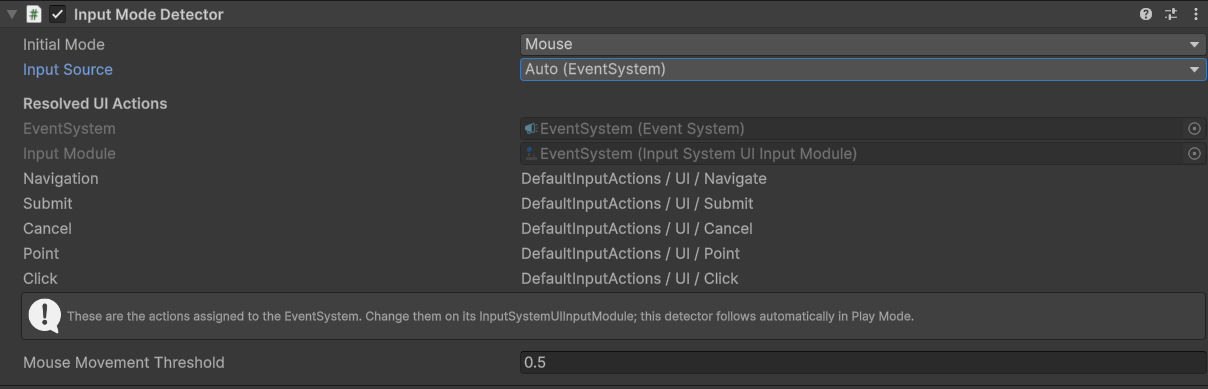
The scope and its default control must be active when focus is requested.
Switching menus from code
using LevelArgento.SmartUINavigation;
using UnityEngine;

public sealed class MenuController : MonoBehaviour
{
    [SerializeField] private SmartFocusManager focusManager;
    [SerializeField] private GameObject optionsPanel;
    [SerializeField] private SmartFocusScope optionsScope;

    public void OpenOptions()
    {
        optionsPanel.SetActive(true);
        focusManager.SetScope(optionsScope);
    }

    public void CloseOptions()
    {
        focusManager.SetScope(null);
        optionsPanel.SetActive(false);
    }
}
SetScope(null) stops monitoring a scope but does not itself clear or change the EventSystem selection. If another menu opens, activate it and call SetScope with its scope.
Requesting a specific selection
using LevelArgento.SmartUINavigation;
using UnityEngine;
using UnityEngine.UI;

public sealed class FocusShortcut : MonoBehaviour
{
    [SerializeField] private SmartFocusManager focusManager;
    [SerializeField] private Button target;

    public void FocusTarget()
    {
        focusManager.RequestFocus(target);
    }
}
RequestFocus returns false if the target is outside the current scope, inactive, disabled, or non-interactable.
Optional smart navigation
For menus that need generated directional links, add the Navigation Group (SmartNavigationGroup) component to a common ancestor of the participating controls. It rebuilds after layout and hierarchy changes by default. See smart navigation before applying it to an existing navigation setup, because rebuilding writes Navigation.Mode.Explicit links.